settingsInstallation
chevron_rightDownload Package
At first, after purchasing this theme, please download the package from Themeforest. All you need to do is move your mouse over your login name in the right top corner and then click Downloads.
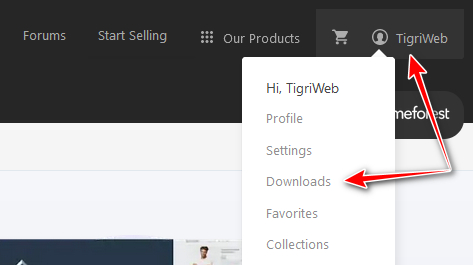
Here you will find all the items that you have purchased.
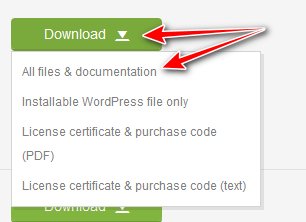
At the next step click the Download → All files & documentation button next to Kampina theme and save package to your computer.
chevron_rightInstalling & Activation
You can find things like: documentation, license, zipped file with theme files and сhild-theme zip archive in the package. Extract the package to a folder on your local computer.
You can complete installation in two different ways:
- WordPress Theme Manager - please go to
Appearance → Themes → Add new → Upload Theme, select theme folder called kampina.zip and press Install Now button. The wordpress will do the rest for you.
- FTP upload - upload non-zipped theme folder called
kampina to /wp-content/themes/ folder in your WordPress installation folder on your server. If you are not familiar with FTP or looking for any FTP software, FileZilla is easy to use.
When the installation is complete, your Kampina theme will be ready to use.
chevron_rightInstall Plugins
In order to extend theme functionality, theme comes with several plugins. You will see a window with an offer to install required and recommended plugins after theme activation.
You can also install and activate the plugins in Appearance → Install Plugins.
Required plugins:
- Kampina Core: Extend Basic Theme Functionality.
Recommended plugins:
- One Click Demo Import: Import your demo content, widgets and theme settings with one click
(After importing, you can uninstall this plugin).
- Save SVG: Enable SVG uploads and sanitize them to stop XML/SVG vulnerabilities in your WordPress website
(After importing, you can uninstall this plugin).
- Envato Market: This toolkit plugin establishes an Envato Marketplace API connection and recommended for update theme automatically.
- WooCommerce: Is a free eCommerce plugin that allows you to sell anything.
- Contact Form 7: Just another contact form plugin. Simple but flexible.
- MC4WP: Mailchimp for WordPress: Allowing your visitors to subscribe to your newsletter.
chevron_rightRegenerate Thumbnails
If you install Kampina theme on a website that already has images uploaded, please use the Force Regenerate Thumbnails plugin to resize all thumbnails.
This plugin allows you to delete all old images size and REALLY regenerate the thumbnails for Kampina theme image attachments.
To regenerate images, follow this steps:
- Go to
Tools → Force Regenerate Thumbnails;
- Click on
Regenerate All Thumbnails and wait until it is finished.
syncUpdate Theme
It’s recommended to create a backup copy of your site before its update.
There are several variants of theme update:
chevron_rightAuto Update
Kampina theme recommends some plugins after installation. One of them is "Envato Market" which automatically alert you on your dashboard when a new version of the theme is available.
If you haven’t installed the plugin yet, follow these steps:
- Go to
Appearance → Install Plugins;
- Hover over "Envato Market" and click "Install Plugin";
- Go to
Appearance → Install Plugins;
- After you install the plugin you’ll see "Envato Market" button on the left menu.
To establish an Envato API Connection navigate to the Envato Market page and insert your Envato API Personal Token in the designated input field.
On the Envato Market plugin page you will find instructions on where to get the Envato API Personal Token.
chevron_rightUpdate Manually
This method requires more steps and manual work. We advise to make a backup of your site before theme update.
For manual update you need to download a new theme version from your account to Themeforest (there is an instruction above in the paragraph “Installation”). Once you have the new theme package, you can choose to upload the theme via WordPress or via FTP.
How To Update Your Theme Via WordPress?
- You need to deactivate the current Kampina theme located in the
Appearance → Themes section (Simply activate another theme). Once you activate a different theme, you can delete the Kampina theme (If you are using child theme, keep it as is, delete parent theme only). Dont worry, your content will not be lost.
- You need to unzip the downloaded archive file you received to get the
kampina.zip file inside.
- Upload the
kampina.zip file to the Appearance → Themes section by clicking on the "Install Themes" tab at the top and then choosing to upload the zip file.
- Once it finishes uploading, choose to activate the theme.
- In the end, update the included plugins. You will see a notification message letting you know a new version of the plugins are available and need to be updated.
How To Update Your Theme Via FTP?
- Go to
wp-content → themes folder location and backup your "kampina" theme folder by saving it to your computer, or you can choose to simply delete it. Your content will not be lost.
- You need to unzip the downloaded archive file you received to get the "kampina" folder inside.
- Simply drag and drop the new "kampina" theme folder into
wp-content → themes folder location. Choose to Replace the current one if you did not delete the old "kampina" theme folder.
- In the end, update the included plugins. You will see a notification message a new version of the plugins is available and needs to be updated.
tuneCustomize
You need to install the "Kampina Core" plugin before using "Customize" functionality. To do this go to the Appearance → Install Plugins in the Admin Panel.
Customize panel has been especially created to make your work faster and easier. Using it is very easy and in just a few minutes you can change a lot of things on your page.
Navigate to Appearance → Customize to make changes.
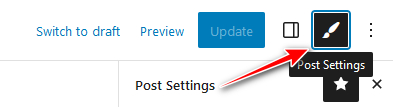
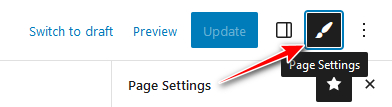
These options are all global options which means any option set in Customize will affect your entire website. If you want to set more specific options for a particular page or post, you can set them in Post/Page Options, which is located in every page or post.
Always remember to click Publish button. Without that you will lose all your changes.
chevron_rightSite Identity
In this section you can set up some general options for your site, such as Logo, Site Title, Tagline and Site Icon.
chevron_rightColors
In this tab you can transform your site beyond recognition. Set up Theme colors, Header colors, Hero colors, Content colors, Footer colors and Fields colors as you want.
This panel is used for managing the navigation menus for content you have already published on your site. You can create menus and add items for existing content such as pages, posts, categories, tags, formats, or custom links.
chevron_rightTypography
Set up fonts of the site. We offer a choice of hundreds of fonts that connect with the help of Google Fonts. And we’ve done a preview area of the text with selected options for you to choose a suitable font comfortably.
WordPress 5.8 introduces blocks to the Widget Editor and lets you add any block to the sidebars and other widget areas in the theme using the all new Widgets Editor.
You can configure the Widgets via Appearance → Widgets menu.
chevron_rightHomepage Settings
You site’s home page can either contain your latest posts or display a static page or post.
chevron_rightAnnouncement Bar
In this section, you can enable/disable the Announcement Bar and add/remove its slides.
chevron_rightGlobal
In this section, you can modify the Layout settings and the maximum width of the content blocks.
chevron_rightSingle Types
In this tab there are settings of layout/appearance of single pages for each post type that is included in the theme. By means of it you have a possibility to set up single pages in detail in different parts of the site.
chevron_rightArchive Types
Kampina theme has an opportunity to create individual settings for different archives of posts (Archive / Blog, Post Tag, Search, Category).
chevron_rightWooCommerce
This tab has some options for WooCommerce plugin.
chevron_rightAdditional CSS
A panel that lets you add CSS code which will override the current theme.
chevron_rightHooks
It’s a section where you can put some code (e.g. HTML) that allow you to show different things and elements in places that are not available from other tools. For example if you want to put some code before header (banner or information about cookies), then put code in Body Before field.